Player setup guide
Install it, sign in, and play. The plugin submits your bingo drops, posts your rare drops, deaths and milestones to Discord, and lets you look up anyone from a right-click.
Install the plugin
#In RuneLite: Configuration (the wrench) → Plugin Hub → search Anvil → Install. The publisher is AhmedFathy2001.
One plugin serves every clan — it always connects to anvilosrs.com, and signing in (next step) is what ties it to you and your clans. There is nothing clan-specific to download and no address to type in. Once installed, an Anvil button appears in the RuneLite sidebar, and its settings live under Configuration → Anvil.
Sign in
#Open the Anvil panel from the RuneLite sidebar and click Sign in with Discord. Your browser opens on anvilosrs.com; approve the code there and the plugin signs itself in — nothing to type, nothing to copy, and nothing to fill in under settings.
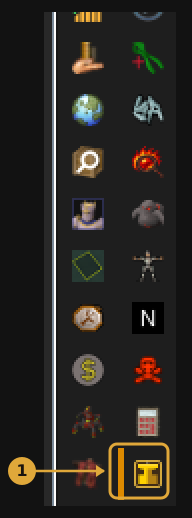
- 1The Anvil button — down the side of the RuneLite window, at the bottom of the icon strip. Click it to open the panel. It appears as soon as the plugin is installed and switched on — and you can drag it up the strip if you would rather have it near the top.
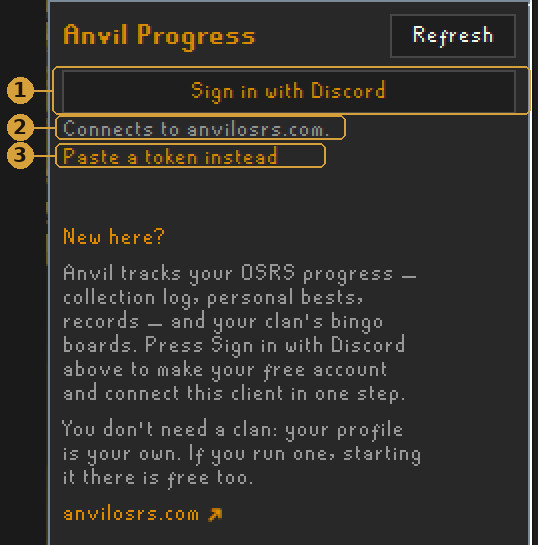
- 1Sign in with Discord — only shows while this computer is signed out. Click it and the rest happens in your browser.
- 2Connects to — always
anvilosrs.com— the only site the plugin talks to, and the one your token belongs to. - 3Paste a token instead — the fallback, if the browser step won’t work for you — see the end of this step.
- Click Sign in with Discord. The panel shows a short code and opens your browser on
anvilosrs.com. - Log in with Discord there if you aren’t already, check the code on the page matches the one in RuneLite, then click Approve.
- Back in RuneLite, the top of the panel says Signed in — and, once you log in, which character it’s tracking. That’s it.
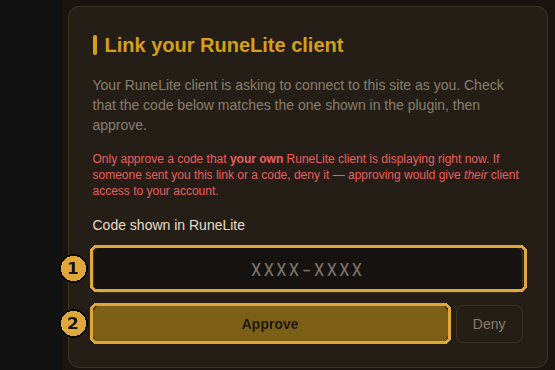
- 1The code — it must match what the plugin is showing you right now.
- 2Approve — only ever approve a code your own client is displaying. If someone sent you a link or a code, deny it — approving would hand them your account.
Everything in this flow stays on anvilosrs.com — the code is issued there, you approve it there with your own Discord login, and the token goes straight back to the plugin. The plugin only ever opens sign-in pages on anvilosrs.com, so a sign-in link that points anywhere else did not come from it.
If the browser doesn’t open on its own, the panel prints the address and the code so you can open it manually. Codes expire after ten minutes — just press the button again.
The Anvil sidebar is your main workspace: sign in and out there, see your clans and live events, browse and claim tiles, follow progress, take starting shots, run syncs and open support tools. Configuration → Anvil, shown below, is only for preferences — there’s no token in it. To sign this computer out, open the ⋯ menu next to your name at the top of the panel. One sign-in covers every event you’re signed up for — you never redo it per bingo.
Fallback: paste your token by hand
If signing in from the plugin won’t work for you, copy your token below (or from Profile → plugin token, where you can also rotate it), then click Paste a token instead under the sign-in button in the Anvil panel and paste it there.
Checking whether you’re signed in…
Treat the token like a password. Open token settings to sign every client out if one leaks.
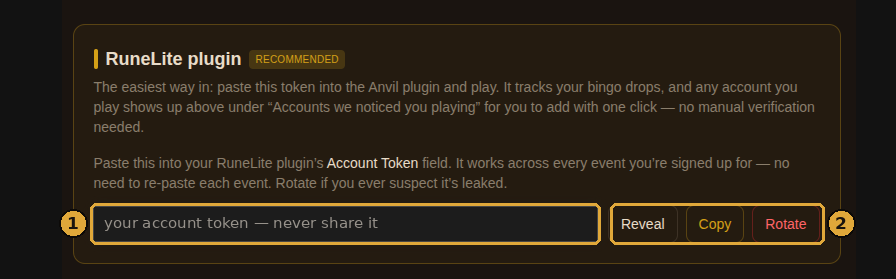
- 1Your token — hidden until you press Reveal. It’s blanked out in this screenshot on purpose; never post yours in Discord.
- 2Copy / Rotate — copy it, then use Paste a token instead in the Anvil panel. Rotate issues a new one and kills the old — use it if you ever think your token leaked.
Link your accounts
#Once the token is in, accounts you play appear on your profile automatically. A brand-new account can link immediately; an account already on a clan roster needs one ownership check first, because a public RuneScape name is not proof that the person holding the token owns it.
For that first link, use the quick XP check or ask a clan moderator to approve it under accounts we noticed. After it is proven, the plugin stores its stable account fingerprint, follows future name changes, and recognises it automatically on every login.
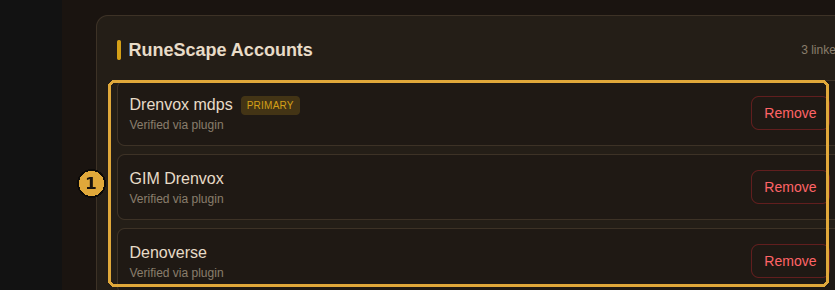
- 1Your linked accounts — anything marked “Verified via plugin” is linked and will be recognised automatically. Established roster accounts may ask for a one-time XP or moderator check first.
Can’t run the plugin?
On mobile or the official client, use Profile → account linking instead:
- Verify by XP — enter your RSN, the site picks a random skill, gain 1,000 XP in it within 30 minutes.
- Manual review — for hidden Hiscores or fresh alts: submit your RSN with a note and a moderator approves it.
Event sign-ups need at least one verified account, so get this done before you sign up.
Check it’s working
#Log in and read your chat box. The plugin greets you when it’s connected and an event is live.
You should also see the Anvil side panel fill in with your clans, your live events, your placing and the sync buttons — and an Anvil button appear in the title bar of your in-game Collection Log.
If chat says Tracked as a guest, you’re being tracked but you’re not on the clan roster yet. An admin fixes that by syncing the in-game clan roster — ask in Discord.
The side panel
Four tabs and a gear. Clan is your events and your clan: every live and upcoming bingo and weekly competition with where you stand. Feed is your clan’s and boards’ big moments as they happen, with event chat. You is your own profile, and Lookup finds anyone else’s, player or clan. The gear holds syncing and your banner sounds.
Every tab, event chat, reactions and the settings that put the feed and Supporter colours into your game are in The side panel, tab by tab.
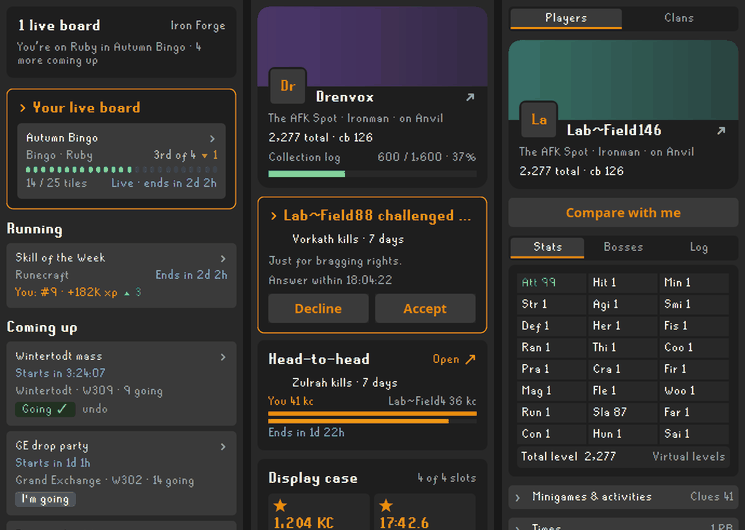
Look anyone up
Right-click a player — standing next to you, or by name in chat, your friends list or the clan panel — and pick Anvil to open their card in the side panel’s Lookup tab. Your own is the You tab.
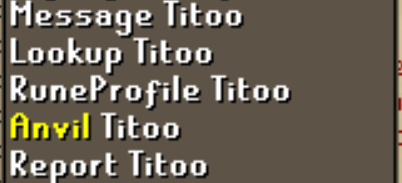
Choose where the Anvil entry shows under Player lookup in the plugin’s settings. On a name in chat it is never the left-click option, so clicking a name still does what the game does.
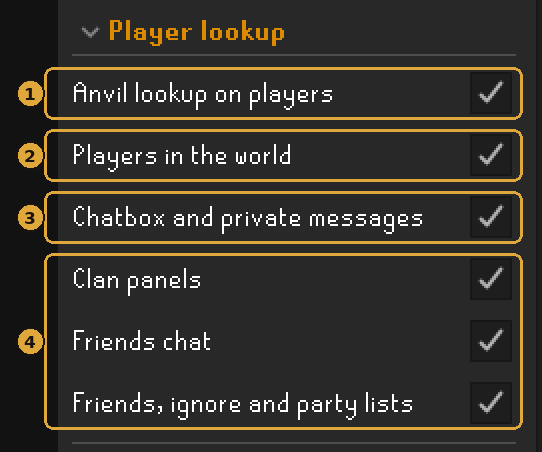
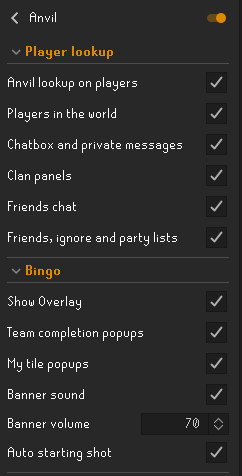
- 1Anvil lookup on players — the master switch. Off hides the entry everywhere.
- 2Players in the world — right-clicking a player standing near you.
- 3Chatbox and private messages — names in the chatbox and in private chat.
- 4Clan panels / Friends chat / Friends, ignore and party lists — the name lists: your clan and guest-clan members, the friends chat channel, your friends and ignore lists and the raid party panel.
Bingo settings
#These only matter while you’re in an event. The defaults are fine — this is what each one actually does.
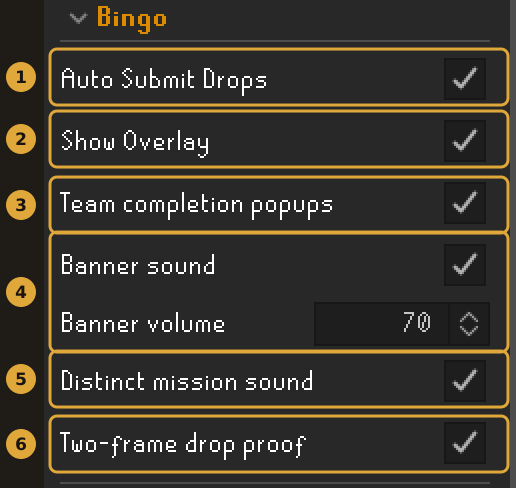
- 1Show Overlay — draws a small Anvil / Team / UTC date panel in the top-left. It becomes part of the picture in your proof screenshots, which is what makes a proof hard to fake or back-date. It’s off in this screenshot — turn it on if your clan wants team and time visible on every proof.
- 2Team completion popups — a banner when anyone on your team finishes a tile. Several at once: the hardest gets the banner, the rest go to chat.
- 3My tile popups — a popup when your own drop moves a tile along or finishes it. Off, it still tracks — just quietly.
- 4Banner sound + volume — plays a sound with the banner. Nothing plays until you add at least one .wav yourself, via Add clip under “Banner sounds” in the Anvil side panel. Missions have a folder of their own — add a clip under Mission sounds and they play it instead of the built-in chime that keeps them from sounding like a finished tile.
- 5Auto starting shot — takes an event’s starting shot for you the moment you stand on its pinned spot. Off, you press Take starting shot in the side panel yourself.
Teams
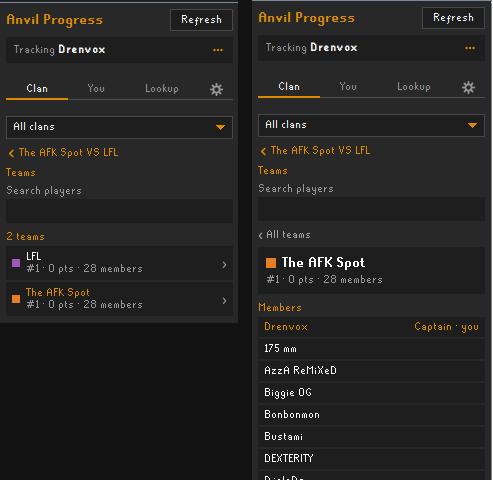
The Teams button on an event lists its teams ranked, with yours on top. Open one for its roster, captain first, or search for a player across every team — click a name to look them up.
Starting shot
Some events ask everyone for a starting shot: one screenshot taken after the event goes live, at a location drawn at the start moment. It stops anyone from spending the week before the event stockpiling clues, caskets and kills to dump on the first day.
If you run the plugin there is nothing to prepare. When the event starts you get a chat line telling you where to go, and the Anvil side panel shows a Take starting shot button. Stand where it says, press it once, and you’re done — the plugin captures the frame, stamps your RSN, team, the location and a keyword only your account gets onto it, and files it for you.
Two things it checks before it files anything, so you fix them in-game rather than in a Discord argument afterwards. If the host pinned the spot on the map, the plugin knows how far away you are and tells you rather than sending a shot from the wrong side of Gielinor. And if the event asks for a fresh session, you need to log out and back in before taking it: your hiscores are only saved when you log out, so a relog right before the shot is what makes your starting totals — and therefore every XP and KC tile — correct.
On mobile, or without the plugin: open My Team on this site, read your keyword off the starting-shot card, type it into the in-game chatbox, screenshot the game with your character and the keyword visible, and upload it on that same card. That upload counts immediately — you can play the moment it’s in, staff review it after the fact. Log out and back in first if the card asks you to.
Discord notifications
#These fire whether or not a bingo is running, and they post to the clan’s channels. Which channel is set up here by the admins — you only choose what you post. In the next plugin update these choices move to the website, under Settings → Discord posts & screenshots, and follow you to every computer. On the same page, Screenshot privacy picks which chat (private messages, public chat, clan chat) is hidden in every screenshot the plugin takes. The plugin keeps two switches under Notifications: Share clan posts pauses every main-game post at once, and Share seasonal activity does the same on Leagues, Deadman and other seasonal worlds.
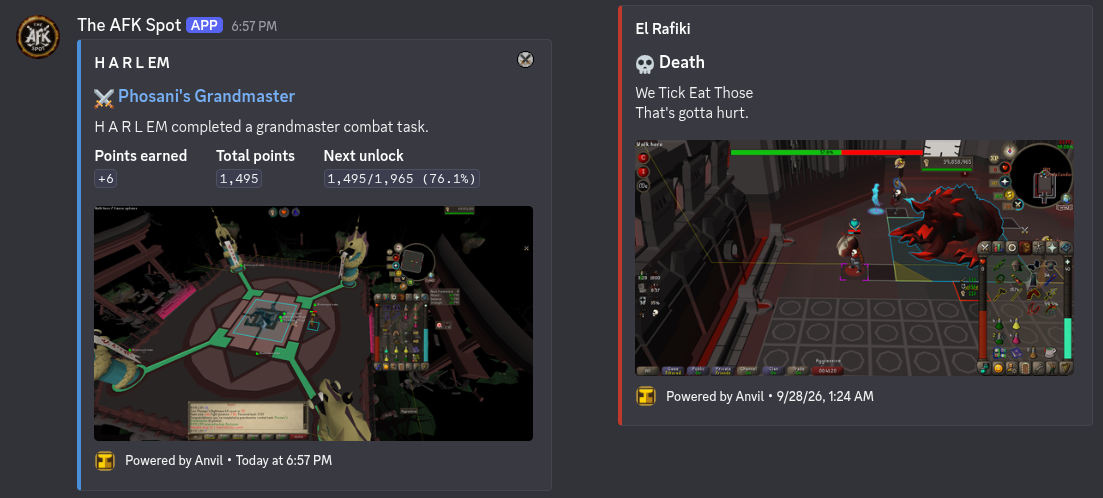
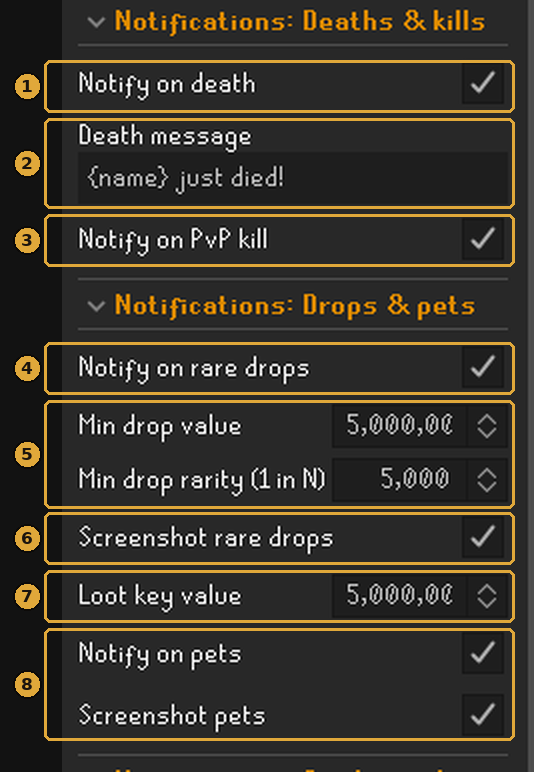
- 1Notify on death — posts to the clan deaths channel with a screenshot of the moment you died.
- 2Death message — your own line.
{name}is replaced with your RSN. - 3Notify on PvP kill — a screenshot of the tick your target hits 0 HP. Off by default; on here.
- 4Notify on rare drops — the master switch for drop posts.
- 5Min drop value / Min drop rarity — a drop posts when it is worth at least this much (GE or high alch, whichever is higher) or rarer than 1-in-N. Anvil starts at 1m and 1/1,000. Your clan can set its own defaults for its members, and until you set a number yourself you follow your clan's; Reset to clan default (or Reset to Anvil default if you have no clan) goes back to following it. A clan can also set a hard rarity floor, which only applies to posts in that clan’s own channels. Your number can’t go looser than it there, and it never changes the value limit. Set either number to 0 to switch it off.
- 6Value and rarity together — by default a drop posts when it meets the value or the rarity. Turn on Require both and it must meet the value and the rarity. Your clan can choose this default for its members; until you choose, you follow it, and with no clan it is either one. Each of your own webhooks can also set its own minimum value, rarity and either/both; anything it leaves blank follows your settings.
- 7Loot key value — a loot key posts once, as a single notification, when its whole contents clear this number.
- 8Notify on pets — pets post to the rare-drops channel.
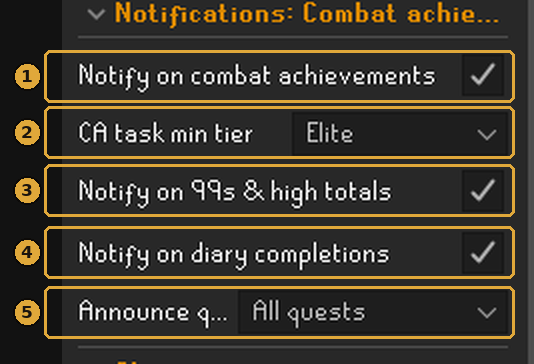
- 1CA post tier — the lowest task tier that posts; tier clears post too. The default is Master; Grandmaster posts only the rarest, Off posts none. Bingo CA tiles count either way.
- 2Notify on collection log slots — every new collection-log slot.
- 3Notify on level milestones — level-ups your clan has chosen to announce — by default 99s, every 100 total levels from 1800, and max. Your clan’s admins set the rules; you can post less (or set your own rules for your personal webhooks) from your profile’s Announcements.
- 4Notify on diary completions — achievement-diary tiers, with a screenshot.
- 5Quest post tier — quests at or above the difficulty you pick, from All (every quest) up to Grandmaster; Off posts none. The default is Master. Bingo quest tiles count either way.
On screen while you play
#What the plugin draws and prints while you play, and the setting behind each.
Profile sync, and what else it sends
#The Profile sync settings fill your Anvil profile. All four are on to start:
Three more things are sent without a setting of their own. Who killed you: the monster or player that had you targeted in your last 15 seconds is named on the feed. Game counters: some kill tiles count a number the game keeps, like Tithe Farm points, Giants’ Foundry reputation, Doom delves or slayer streaks; only rises count. Leagues, Deadman and other modes: on those worlds, the game’s own lines about relics, areas and tasks are sent so your clan can post them in its mode channel.
When something breaks
#The plugin tells you in chat when tracking has stopped — it waits about 90 seconds before complaining and repeats at most every 5 minutes.
Anvil: your Account Token was rejected — tracking is OFF.The token is wrong or was rotated. Open the ⋯ menu at the top of the Anvil panel, press Sign out, then Sign in with Discord again — or use Paste a token instead with a fresh token from Profile → RuneLite plugin.Anvil: can’t reach the site (anvilosrs.com) — tracking is OFF.The plugin can’t reach anvilosrs.com. Check your internet connection, and any firewall or VPN that might be blocking RuneLite. If that’s all fine, the site is probably down for a moment — the plugin reconnects by itself.…you’re logged in as "<RSN>" but isn’t linked… your drops won’t count.That account isn’t linked yet. Open Profile → accounts we noticed to add it or start the ownership check.Anvil: reconnected — tracking is back on.Nothing. It recovered by itself.Still stuck? Send an admin a log
Send an admin your RuneLite log: client.log in the .runelite/logs folder in your user folder (on Windows, paste %USERPROFILE%\.runelite\logs into the Explorer address bar). The plugin writes what it saw and why into it, so they can see exactly what went wrong.
Pets and duplicate Champion’s scrolls need a manual screenshot. The plugin takes one for you and saves it to .runelite/osrs-bingo-pending/ — Copy folder path in the Anvil side panel opens it — so you attach it on the site rather than hunting for a shot after the fact.
Known limitations
#A few things can’t be tracked perfectly — almost always because of what the game itself reports, not Anvil. The fix is the same every time: screenshot it and submit it manually.
Screenshots are from a live setup — the account token is blanked out on purpose. Yours should stay just as private. How your data is handled: Privacy policy.
Stuck, or something looks wrong? Ask in the Anvil support Discord